Buy enough capacity for a defined task, verify the host protocol and format, and budget for an independent backup when the SSD will hold the only copy of important files.
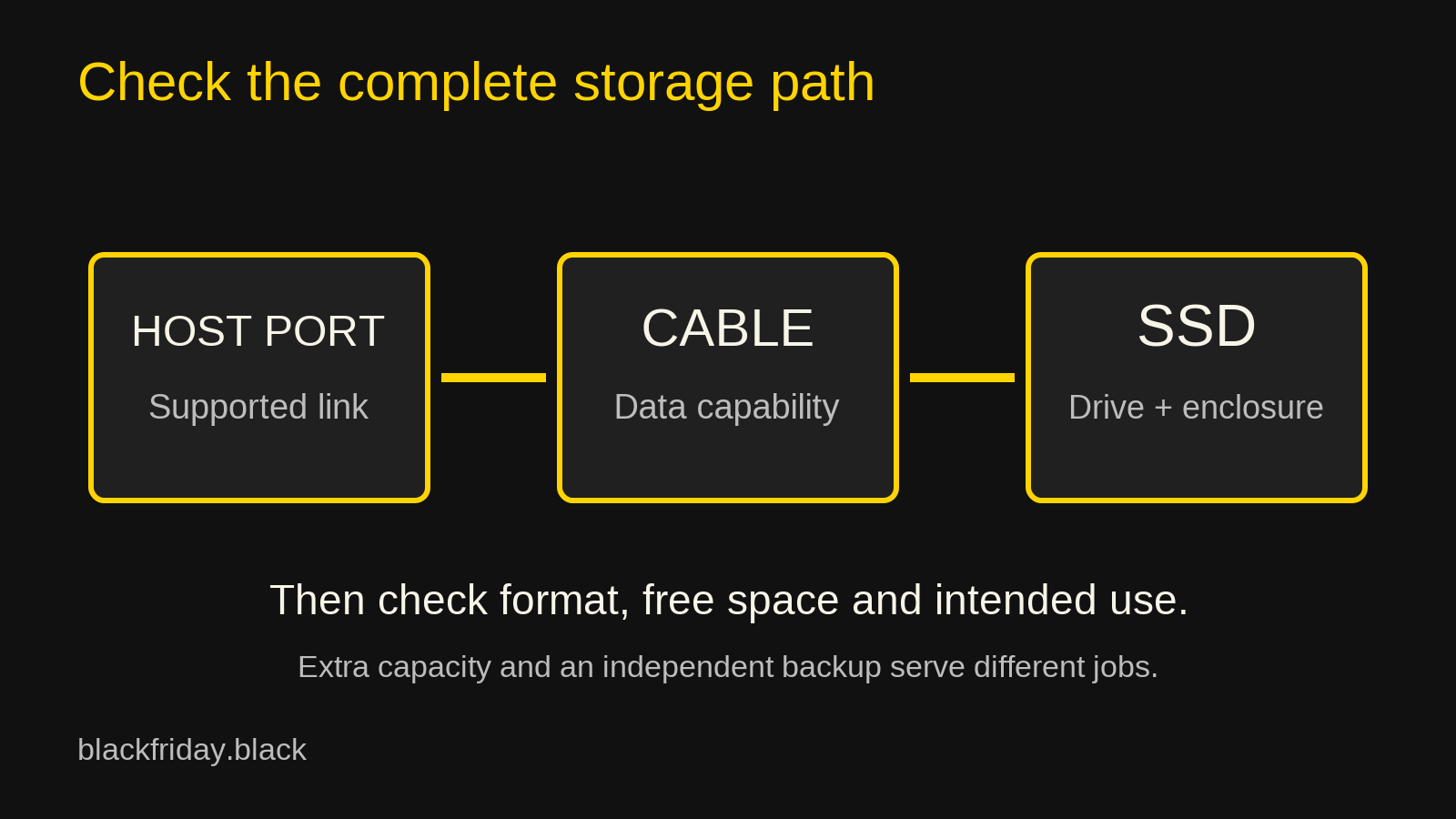
An external SSD is compatible when your device can connect to it, recognise its format and use it for the job you have in mind. A USB-C plug and a large speed number do not prove those three things. A drive can work perfectly for moving files yet be unsuitable for a console’s direct game playback or your chosen backup system.
Start with one sentence: “I need to back up this Mac,” “I need extra working space for these projects,” or “I need to store these games on this console.” Then identify the exact host model and port. Capacity, connection and file format follow from that task.
This guide explains documented compatibility and a practical verification plan. It does not report benchmark tests, promise recovery from a failed drive or identify a current discounted product. The goal is to buy storage you can actually use, with the right protection for the files placed on it.
Decide whether you need space, transport or a backup
Extra storage gives files another place to live. A backup is an additional recoverable copy. If you move your only photographs off a laptop and onto an SSD, you have changed their location; you have not created a second copy.
For working storage, estimate the projects you need available at once, including temporary files and room for ordinary growth. For transport, establish which computers must read and write the drive. For backup, determine what software you will use, how much source data it must protect and whether it keeps earlier versions.
These tasks can overlap, but avoid an arrangement where the same physical drive contains both your only working file and its only supposed backup. One hardware failure or loss can remove both. Two folders or partitions do not create two independent devices.
If you are combining local and online protection, compare what is actually retained and recoverable in the cloud backup renewal guide. A synchronised folder may have useful recovery features, but their retention, deletion behaviour and limits need checking rather than assuming all cloud storage is equivalent.
Match the host protocol, not just the socket
Find the manufacturer’s port specification for the exact computer, tablet or other host. USB-C describes a connector shape; it does not establish the supported data rate. The same shape can appear on different interfaces and on cables with different capabilities.
USB-IF’s guidance separates data performance labels from connector terminology. USB 3.2 also includes a two-lane arrangement used to achieve 20Gbps. Consequently, do not infer support for every particular USB mode from a larger-looking number elsewhere in a computer’s specification. Match the SSD’s required protocol and the host’s written support.
Samsung’s T9 documentation gives a concrete example: its specified interface is USB 3.2 Gen 2x2, and its advertised maximum performance comes with defined test conditions. That does not establish the same result on every USB-C computer. Confirm what the host supports and what fallback behaviour the drive manufacturer documents before paying for a performance tier.
If the host specification is unclear, ask support with the full computer model, SSD model and intended connection. “Will it connect?” and “Will it use this exact high-speed mode?” are separate questions. A slower but supported connection can still be entirely adequate for ordinary documents and scheduled backups.
Include the cable, hub and enclosure in the chain
Use the supplied appropriate cable initially and check which cables are included. A charging cable from another device may fit without carrying the data performance you need. Look for a stated data capability, suitable connectors and the length required by your desk.
A hub or dock introduces another link. Check its data port specification and whether other devices share the available connection. A fast SSD connected through an unsuitable hub does not gain the host’s direct-port capability automatically. The USB-C dock guide explains why a whole desk needs a connection plan.
If you are buying an internal SSD plus an enclosure, match the drive protocol and physical dimensions. M.2 is a physical form factor that appears on drives using different protocols. StarTech’s SATA M.2 enclosure documentation explicitly excludes NVMe models, while its other enclosure models support different combinations. A board fitting into an enclosure is insufficient evidence of compatibility.
Check supported drive lengths, thickness, installed heatsinks and assembly instructions as well. Include any required thermal pad and correctly fitted cover in the plan. Buying components separately can be useful, especially when reusing a suitable drive you already own, but the total must include the enclosure and cable. Do not assume that every M.2 enclosure accepts every M.2 drive.
Choose a file format for the destination
A file system is the arrangement used to store and organise files on a drive. The operating systems and applications reading that drive must support it. A new drive’s factory format may suit ordinary file transfer without meeting your backup software’s requirements.
Apple’s Disk Utility guide lists APFS as a Mac file system and exFAT as compatible with Windows. For sharing ordinary files between a Mac and Windows computer, verify that the chosen format is supported on both actual systems and by any additional device involved. Check your workplace’s rules before attaching personal storage to a managed computer.
For Time Machine, follow Apple’s specific backup-disk instructions rather than choosing a shared-file format by habit. Apple identifies APFS or APFS Encrypted as preferred formats for a Time Machine backup disk. Its guide also explains that preparing an unsuitable disk can require erasing and reformatting it.
Formatting can erase the selected drive. Check its name, capacity and contents before proceeding, and keep another verified copy of important existing data. If you are repurposing an old drive containing files you cannot replace, do not initialise or format it just because the operating system offers that button.
Console storage has a separate rulebook
Check the exact console and the task: install, archive, play directly or copy saved data. A drive sold as “gaming storage” does not answer all four. The rules can differ by game generation even on one console.
PlayStation’s PS5 guidance says PS5 game data can be moved to USB extended storage, but those games must be copied back to supported console storage before play. It separately allows PS4 games to be played directly from USB extended storage. That distinction matters if your main goal is having more PS5 games immediately playable.
The same guidance specifies supported connection and capacity requirements and explains formatting as USB extended storage. It also distinguishes that arrangement from reformatting the drive as exFAT for other uses. Do not treat game installation storage and ordinary media-file storage as interchangeable just because both use a USB drive.
If direct PS5 play is the objective, compare the appropriate supported expansion option in the PS5 storage guide. If avoiding a repeated download is the objective, external archival storage may solve the problem. Buy for that explicit outcome instead of the largest capacity carrying a console photograph.
Interpret speed claims in the context of your files
An “up to” sequential transfer figure describes a particular workload and set of conditions. It does not predict the time for every folder. Many small files, the source drive, the host connection, other activity and the drive’s operating state can all affect a real transfer.
Temperature and sustained work deserve attention when copying large projects repeatedly. Read the manufacturer’s operating guidance and the conditions attached to performance claims. Keep the drive positioned as intended, rather than covering it in a bag during a long session or improvising an enclosure arrangement.
Capacity also matters independently of speed. Compare the exact capacity variant; product families can have different stated performance or endurance details across sizes. Estimate how much you need after allowing for the system’s displayed available space and the way you intend to manage files.
For a hypothetical photographer moving 200GB after each trip, reliability of the complete workflow, copy verification and a second copy may matter more than paying for a peak transfer rate the laptop cannot use. For someone editing large projects directly from external storage every day, documented sustained workload suitability and the host connection deserve more weight. Neither example establishes benchmark performance for a product.
Calculate the usable package and verify it
Compare drive, required cable, enclosure if separate, any needed dock upgrade and the independent backup your workflow requires. Avoid buying a new dock solely to unlock a faster drive until you compare that total with a slower supported SSD that already solves the job.
In a hypothetical comparison, a 100 drive plus a 20 cable and a 50 enclosure totals 170. A complete external drive costing 150 could be cheaper if it meets the same task. These invented figures demonstrate complete-cost comparison; they are not observed listings. Use your actual charges in the checkout calculation and compare the host requirements with your laptop ownership costs.
When the drive arrives, confirm its model and capacity against the order. Connect it directly using the recommended cable, follow setup instructions and copy a non-critical sample of your actual file types. Open the copied files. Then verify a real backup and a small restore through your chosen software before trusting the workflow with irreplaceable material. Keep existing copies while you establish that it works.
Choose the drive whose supported connection, capacity and format match the job. Pay extra for speed when your host and workload can use it. Budget for a second recoverable copy whenever the SSD will hold important originals. Those decisions deliver more value than a headline specification detached from the device you own.
Sources and references
- USB-IF: data performance terminology
- USB-IF: USB 3.2 and multi-lane operation
- Samsung: Portable SSD T9 interface and performance conditions
- StarTech: SATA M.2 enclosure protocol limitations
- Apple: file system formats in Disk Utility
- Apple: supported Time Machine backup disks
- PlayStation: PS5 USB extended storage and direct-play distinctions