Choose mesh for a measured coverage problem, with a confirmed router or access-point setup and workable links between units. Compare ports, placement and ongoing features before headline wireless speed.
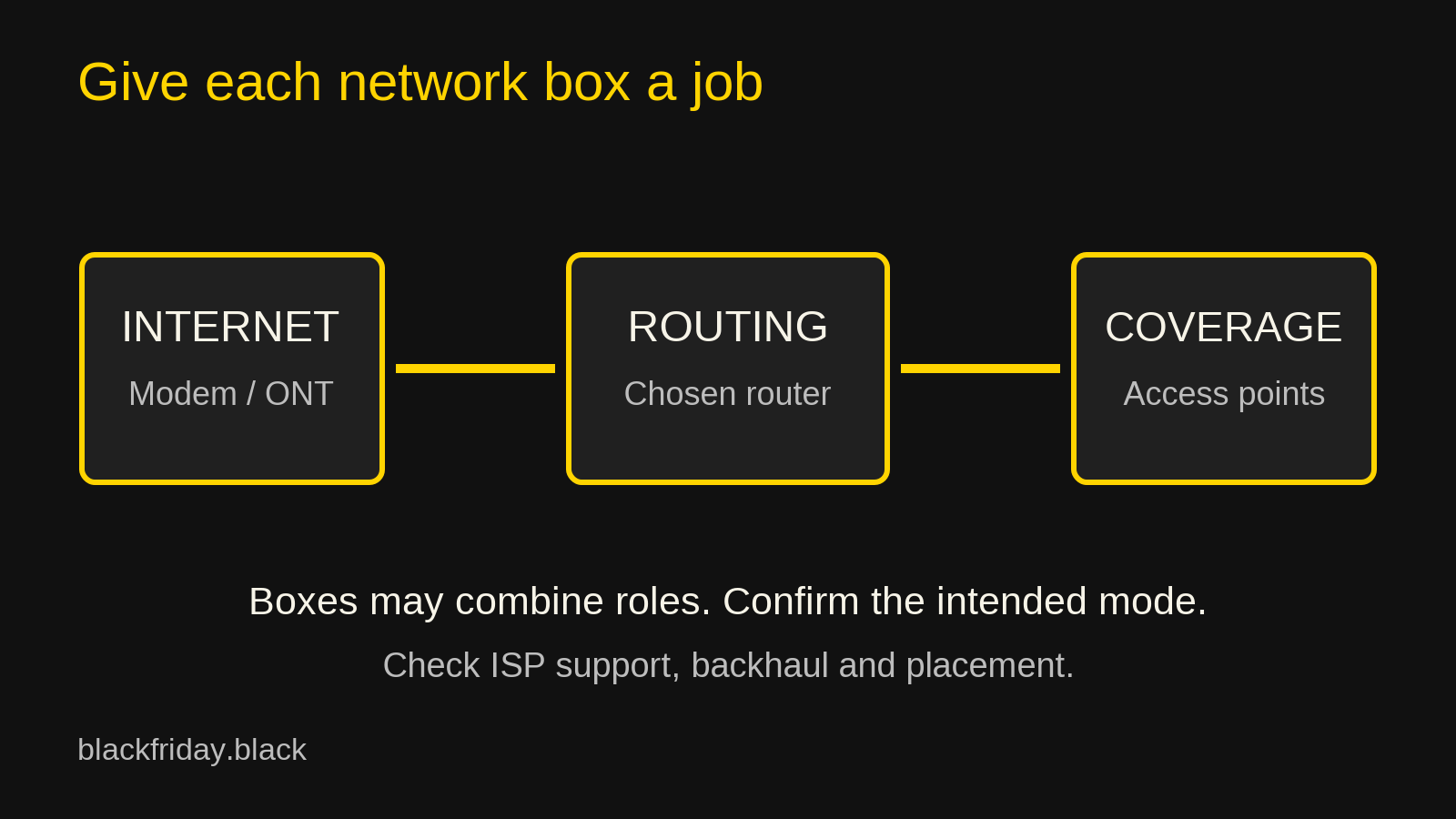
A mesh Wi-Fi kit is compatible with your home when it can connect correctly to your internet equipment, operate in the right mode and place useful wireless coverage where you need it. Buying more nodes does not automatically fix slow internet. First establish whether the problem is the incoming service, a weak room or the connection between rooms.
The most useful buying description is concrete: “Keep the provider’s telephone service, cover the upstairs office and connect one desktop by Ethernet.” That gives you features and a layout to check. “Fastest Wi-Fi” leaves the important constraints unresolved.
This guide explains the network roles in plain language and provides a purchasing and setup plan. It does not claim speed measurements or security testing of a particular system. Manufacturer examples illustrate documented behaviour; your exact model, hardware version, firmware and internet provider still matter.
Identify what the provider’s box actually does
A modem connects to certain types of internet service, such as cable or DSL. An ONT, or optical network terminal, converts a fibre connection into a form your home equipment can use. A router manages traffic between your home network and the internet. A wireless access point supplies Wi-Fi to a network that already has routing.
Several of those jobs may be combined in one box. Photograph its label and ports, then check the provider’s documentation. Do not identify its role purely by the number of antennas. A box called a “hub” may be performing routing, wireless and telephone functions together.
Find out what the provider supports before replacing it. You may need connection credentials or a specific configuration; telephone and television services can depend on the supplied equipment. Ask the provider which arrangement preserves the services you use. A mesh kit with an Ethernet internet port is not automatically a replacement for a cable modem, DSL modem or fibre terminal.
Keep the existing equipment until the new arrangement is confirmed. Record your current configuration so you can restore ordinary connectivity if setup takes longer than planned. Replacing home internet immediately before an important work call is an avoidable buying problem.
Pick one clear routing arrangement
For many homes, two arrangements deserve comparison. In the first, the mesh system becomes the router and the upstream equipment provides the appropriate connection without doing a second layer of ordinary home routing. In the second, the provider’s router stays in charge and the mesh operates in access-point mode, adding wireless coverage.
TP-Link’s Deco documentation describes both router and access-point operation with an existing router. It recommends bridge mode on a combined upstream modem/router when appropriate to avoid double NAT with Deco routing. It also states that the main Deco needs a wired internet connection rather than acting as an ordinary wireless repeater. Those details apply to the documented product family; check another system’s instructions separately.
Double NAT means two routing devices are translating network addresses in sequence. Basic browsing may still work, so an internet connection alone does not prove the arrangement is ideal. It can complicate services that need connections reaching a particular device. If you use game hosting, remote access or port forwarding, ask how the proposed system handles your actual use.
Do not assume buying a different router removes address restrictions imposed upstream by the provider. Explain the service you need to the provider as well as the router manufacturer. A port-forwarding feature on a box cannot alone guarantee public access from the internet.
Confirm which features survive access-point mode
Access-point mode may be the simplest fit when the provider’s router needs to remain. However, features managed by the mesh router can change or become unavailable in that mode. Check the manufacturer’s mode-specific feature table for parental controls, guest networking, device prioritisation, filtering, VPN functions and anything else driving the purchase.
Write down the feature in practical terms. “Pause the children’s devices at bedtime from my phone” is easier to verify than “advanced controls.” Confirm whether it works in your intended mode, whether it requires an account or paid plan, and what happens if the cloud service is unavailable.
Keep the provider’s Wi-Fi on only if the overall plan calls for it. Two independently managed wireless systems with the same name do not automatically become one coordinated mesh. Choose a clear setup from the manufacturer rather than creating overlapping coverage and hoping that devices will switch perfectly.
Understand backhaul before counting nodes
Backhaul is the connection carrying traffic between mesh units. A satellite in an upstairs office must have a useful route back to the main unit. If that route is weak, a strong signal between your laptop and the satellite cannot restore the missing capacity behind it.
Wireless placement therefore needs overlap. Put the next unit where it can communicate with the rest of the system, not automatically in the centre of the dead zone. Walls, floors, cupboards and the path between units matter. Check available outlets and make sure ordinary furniture arrangements will allow the proposed positions.
Ethernet backhaul uses network cable between units. TP-Link’s published wiring rules show why the operating mode matters: in Deco router mode, satellites connect behind the main Deco; in access-point mode, supported wiring can also run through the upstream router. Its guide allows a mix of wired and wireless units and describes checking the link type in the app. Use your intended manufacturer’s diagram rather than copying this arrangement indiscriminately.
If your home already has wall sockets, establish what they connect to. A socket’s shape does not prove there is a complete, working network cable behind it. Include any switch, patch leads or installation needed to make those routes usable.
Read Ethernet ports and wireless labels separately
Count how many physical ports remain after connecting the internet and any wired backhaul. A compact unit with two ports can leave less room for a desktop, television or console than the product photograph suggests. A suitable network switch may solve that, but it adds cost, space and another powered device.
Check each port’s speed and job. A higher-speed internet subscription needs a suitable path through the main unit and onwards if you expect to use it on one wired device. One fast port does not establish that every port or every route through the system has the same capability.
Wireless marketing figures are not a promise of a laptop’s internet download speed. They may describe radio link capabilities across several bands and depend on compatible client devices and operating conditions. Your useful result depends on the incoming service, client, distance, interference and links between nodes.
Do not pay for an advertised wireless mode solely because it has a larger number. Record the devices you own and the work that struggles today. A dependable call in a distant room can matter more than a peak figure obtained beside the main router. The minimum specification checklist turns that requirement into a comparison you can actually use.
Include subscriptions and management in the total
Separate basic networking from optional services. TP-Link’s HomeShield documentation, for example, distinguishes subscription offerings for advanced parental controls and security on compatible products. It advises checking the relevant model, hardware version and current support information. A feature pictured in an app screenshot may not be included permanently in the box price.
Record the trial period if offered, what renewal costs, what continues without payment and how cancellation works under the actual terms. Do not assume every security feature needs a subscription, or that every advertised feature is free. Judge the functions you will use.
For a hypothetical comparison, Kit A costs 180 and requires a 35 annual service for a feature you consider essential. Kit B costs 230 with an acceptable included alternative. Over three years, A becomes 285 before other costs; B remains 230 under those stated assumptions. These invented amounts illustrate ownership cost and are not current product pricing or a prediction of future plan terms.
Add cable installation, a switch where needed, mounting and replacement of unsuitable leads. Use the checkout total guide for immediate charges, then keep annual services in a separate ownership line. Mixing one-time and recurring costs can hide which kit really fits the budget.
Test the actual problem after installation
Before changing equipment, record a few ordinary observations: whether a wired device also loses connection, which rooms struggle, and whether trouble follows one particular laptop. This avoids assigning every problem to Wi-Fi coverage. A failing incoming connection needs different attention from a strong connection near the router and weak coverage upstairs.
After setup, follow the manufacturer’s firmware and configuration instructions. Check the mesh map and whether each unit uses the expected backhaul. Test the service in the room that motivated the purchase: a normal video call, work connection or game session. Then test any telephone, television, printer and smart-home functions that depend on the network.
Change one placement or setting at a time and keep brief notes. If the far room remains unreliable, first inspect the satellite’s connection back to the main unit. Adding a third unit without understanding that route can add expense without resolving the bottleneck.
Choose a single router or access point when it covers the useful area well. Choose mesh when several locations need coordinated coverage and you have sensible positions or wired links. Keep the provider’s required services in the design, confirm your essential features in the selected mode, and compare a complete working network rather than the biggest wireless label.