Use compatible M.2 storage to play PS5 games directly. USB extended storage can hold PS5 games for copying back and can run supported PS4 games. Buy the job you need before comparing capacity.
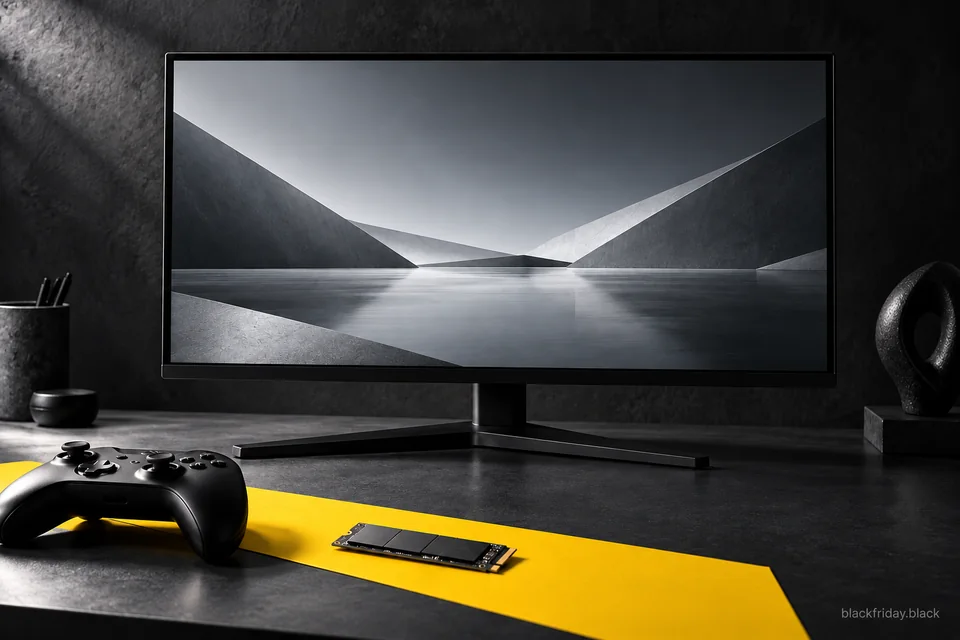
If you want more space from which to play PS5 games, look for a compatible internal M.2 SSD. If you mainly want somewhere to keep PS5 games before copying them back, USB extended storage can do that job. Supported PS4 games can be played directly from USB extended storage.
That difference comes before the price. A cheap external drive and an internal M.2 drive with the same capacity are not interchangeable purchases. One adds directly playable PS5 space; the other can make managing an archive more convenient.
Start by deciding which games you want ready to launch and which you are happy to transfer. Then check Sony’s requirements for the exact drive, including cooling and physical fit for M.2 storage. A large capacity or “gaming” label is not enough.
Choose a library routine before a drive
Look at the storage screen on your console. Record the games you actively use and the space they occupy now. Leave room for updates and new purchases rather than promising yourself that a fixed number of games will always fit.
If you often switch between several large PS5 games, a compatible M.2 SSD can reduce the need to copy games back before playing. If you mostly play one or two at a time, existing console storage plus a USB archive may suit you.
Your internet connection matters. Re-downloading a large game and copying it from a local drive are different routines. Download limits, connection reliability and patience for transfers all belong in the decision. Do not predict exact transfer times from a drive’s advertised speed alone.
You can also spend nothing if a smaller installed library meets your needs. Check what can be removed or moved through the console’s supported procedures, taking care to manage saved data separately. Buying capacity is useful only if it improves the routine you actually have.
What each option can do
Sony’s support information distinguishes the options clearly:
| Storage | Play PS5 games directly? | Play supported PS4 games? | Main purpose |
|---|---|---|---|
| Console’s internal storage | Yes | Yes | Your existing active library |
| Compatible installed M.2 SSD | Yes | Yes | Extra space for installed, playable games |
| USB extended storage | No; copy PS5 games back first | Yes | PS5 archive and direct PS4 play |
For a PS5 game held on USB extended storage, copying it back means moving it to console storage or compatible M.2 storage before play. Do not buy USB storage expecting the console to launch that PS5 game directly from it.
A USB SSD may make supported operations more convenient than some alternatives, but it does not change this rule. Spending more on a faster external drive does not turn it into internal M.2 storage.
Check the full M.2 requirement
Sony specifies PCIe Gen4x4 M.2 NVMe storage with Key M. This describes the supported drive interface and connector arrangement. SATA M.2 drives are not supported, even if a product uses the familiar M.2 name.
Sony’s published requirements include capacity from 250 GB to 8 TB and the following supported form factors: 2230, 2242, 2260, 2280 and 22110. Those codes describe standard board sizes. You still need to check the complete dimensions with cooling included.
| M.2 check | Sony’s published requirement or guidance |
|---|---|
| Interface | PCIe Gen4x4 M.2 NVMe, Key M |
| Capacity | 250 GB–8 TB |
| Supported lengths | 30, 42, 60, 80 or 110 mm |
| Complete width | Up to 25 mm including cooling |
| Complete thickness | Up to 11.25 mm |
| Space above the board | Up to 8.0 mm |
| Space below the board | Up to 2.45 mm |
| Sequential read speed | 5,500 MB/s or faster recommended |
| Cooling | Effective heat dissipation required |
The speed is a recommendation, not a guarantee that every matching third-party drive performs identically. Sony says it cannot guarantee all devices even when they appear to meet the stated specifications.
Open the drive maker’s specification for the exact model and capacity. Retail listings can group several capacities and cooling versions on one page. A measurement for the bare drive does not establish the assembled thickness of the version with a heatsink.
Cooling is part of compatibility and price
An M.2 SSD needs effective heat dissipation for use in the PS5. That can involve a compatible built-in heatsink or a suitable added cooling arrangement that fits Sony’s envelope. The heatsink is not just an optional decorative extra.
A drive sold with a large desktop-computer heatsink may not fit the console. Check width and thickness above and below the board, not only total length. Do not assume a “PS5 compatible” headline replaces those measurements.
Sony advises against adding a further heatsink to a drive that already has one integrated. Follow Sony’s and the drive maker’s instructions for the actual product. Stacking cooling parts because they seem helpful can create the wrong physical arrangement.
If a bare drive needs additional cooling, include the correct parts in the total. A package with supported cooling may cost more on the item line but less than the bare drive plus parts. Also consider whether you are comfortable following the installation instructions or need help arranging the work.
Check USB storage as a separate purchase
For USB extended storage, Sony specifies SuperSpeed USB at 5 Gbps or later and a capacity from 250 GB to 8 TB. The drive must not connect through a USB hub, and only one USB extended-storage drive can be used at a time. Sony does not guarantee every device.
Check the console model’s supported ports and the correct cable arrangement in Sony’s instructions. A cable with the right plug shape is not proof that it provides the required connection. An enclosure also matters if you are assembling an external drive rather than buying a complete unit.
Distinguish capacity from drive behaviour. A large drive may fit an archive economically, while a different model may suit frequent transfers. Neither changes the PS5 direct-play limit described earlier.
If you already own a suitable USB drive, check its contents before considering reuse. Formatting for the console removes existing data. Do not use a drive holding your only copy of personal files simply because it is available.
Decide how much capacity is useful
Use the console’s actual game sizes as your starting point. A game’s store download size may not represent the installed size after updates and optional content. Sizes can change, so keep your plan flexible.
In a hypothetical library, your frequently played PS5 titles occupy 1.6 TB and occasional games occupy another 2 TB. An M.2 drive can provide space for the active titles, subject to usable capacity and the rest of your arrangement. A USB drive can hold the occasional PS5 games for transfer. This is a routine example, not a promise that a particular capacity holds a fixed number of games.
Bigger is useful if you will use it. Otherwise, a lower purchase cost may matter more than the lowest price per terabyte. Compare matching drives and cooling versions, and leave enough room for the actual library rather than buying the largest capacity a sale offers.
Capacity is not a substitute for managing saved data or backing up what the console supports. An added game drive solves space; it does not automatically become a complete recovery plan for everything on the system.
Compare complete, compatible offers
A fair M.2 comparison includes the same capacity, a suitable cooling arrangement and any necessary delivery cost. Do not compare a bare SSD with a cooled package as if both were ready to install.
Here is a hypothetical example. Drive A costs £90 and needs £20 of suitable cooling parts, for £110. A comparable supported package costs £105. The package is £5 cheaper for that arrangement. A third £100 drive with an oversized heatsink is not an alternative if it cannot fit.
For USB, count a required cable or enclosure only when needed. Avoid counting supplied accessories twice. Check who provides the warranty and how an opened or faulty drive is handled in your market.
A low price from an unidentified seller deserves the same checks as any other electronics purchase. Our marketplace seller guide covers seller identity and terms; the discount guide covers the difference between reference prices and usable savings.
Plan installation and the first use
Use Sony’s current installation instructions for your exact console model and the drive maker’s guidance. Read them before opening the equipment so you know the tools, parts and steps involved. This buying guide does not replace that sequence.
Check what formatting will erase. An installation or first-use prompt should not be treated as a harmless confirmation if the drive contains data you need. Preserve any existing contents elsewhere through an appropriate process before using the drive for console storage.
After setup, confirm that the console recognises the storage and that games are placed where you intend. Try an ordinary game and check the storage-management settings. If something is wrong, use the documented support route rather than forcing the drive or adding unapproved parts.
Keep the exact model, capacity, cooling version and purchase record. These details are more helpful for support than a screenshot saying only “gaming SSD”.
Avoid the common expensive mistakes
Do not buy SATA M.2 because it looks similar to NVMe. Do not buy a USB drive expecting direct PS5 play. Do not forget the cooling requirement, compare bare-drive dimensions with assembled-drive limits, or assume a higher advertised speed proves compatibility.
Also avoid paying for a capacity you will not use merely because the price per terabyte is attractive. Storage should make your library easier to manage, not give you another specification to maximise.
For another console upgrade, the gaming monitor guide uses the same practical idea: check the complete connection before paying for a headline feature.
Your choice should be easy to state. “I want these PS5 games ready to launch, so I need compatible M.2 space,” or “I am happy to copy occasional games back, so this suitable USB archive meets the need.” Once the job is clear, the deal is much easier to compare.
If you are still choosing the console itself, start with the PS5 console comparison. For a portable drive shared with other equipment, the external SSD guide separates connection speed, formatting and backup from the console-specific question of direct game play.